Skip to content
Stepify
How it works
Tutorials
Pricing
Sign in
Get started free
Home
Chatwoot
How to create a canned response
Chatwoot
How to create a canned response
7
steps
87 views
March 16, 2026
Guided Replay
Written Guide
Embed
Share
Share Tutorial
×
Copy
LinkedIn
X
Facebook
WhatsApp
Email
1/7
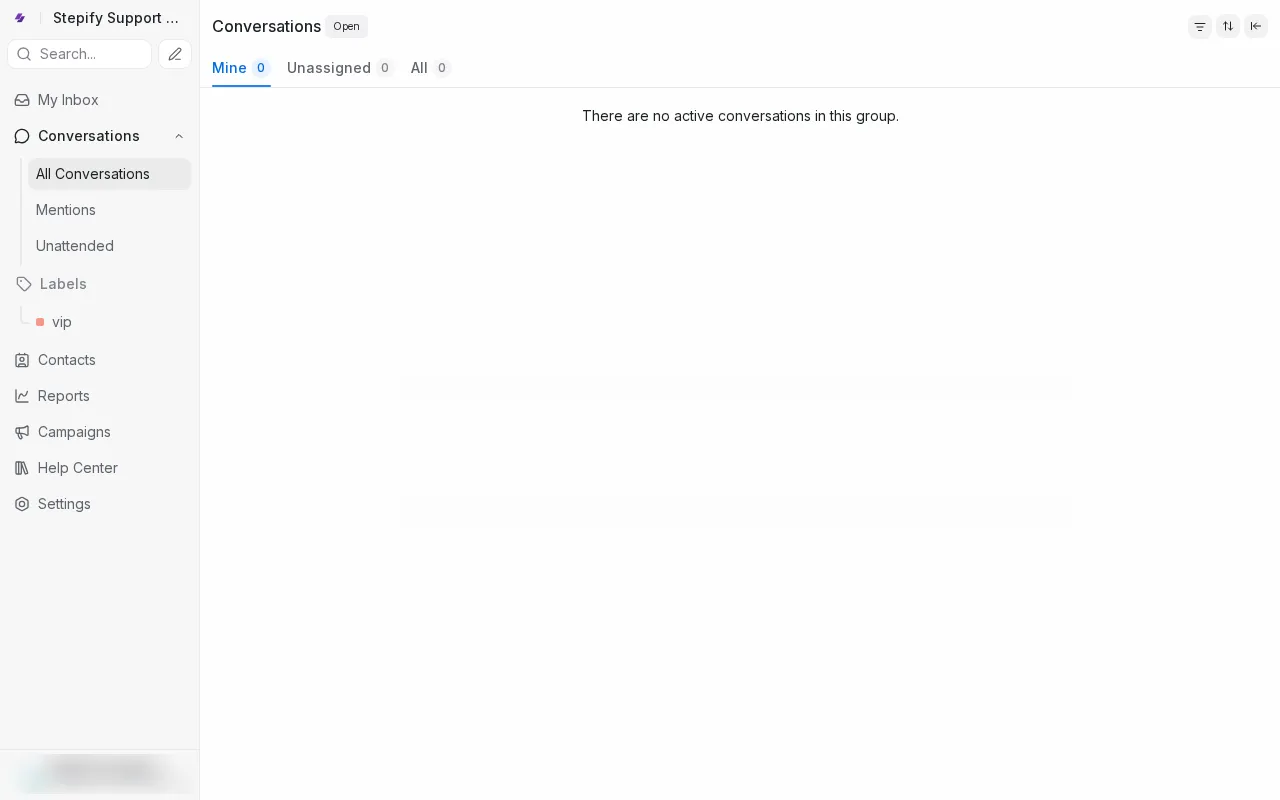
Log in to the Stepify Support dashboard
1/7
Step-by-Step Guide
1
Log in to the Stepify Support dashboard
2
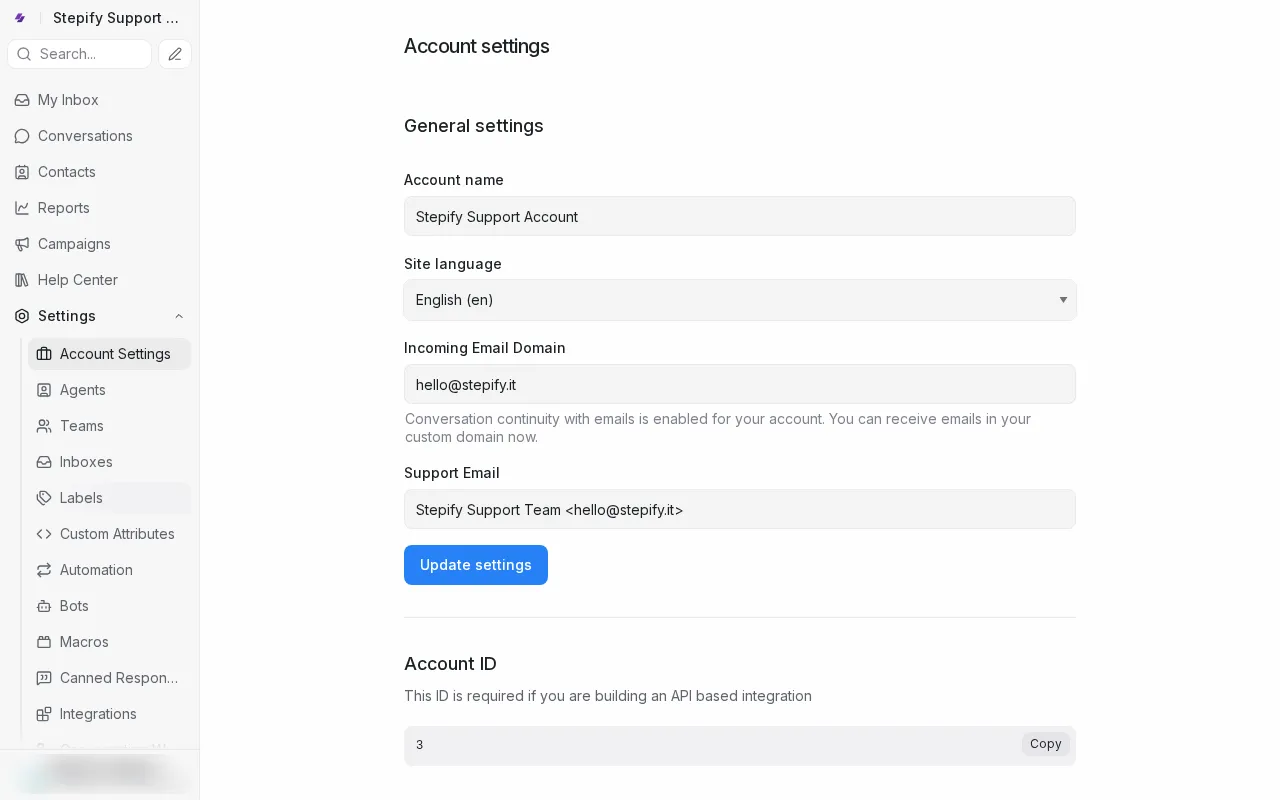
Open Settings in the left sidebar
3
Select Canned Responses from Settings
4
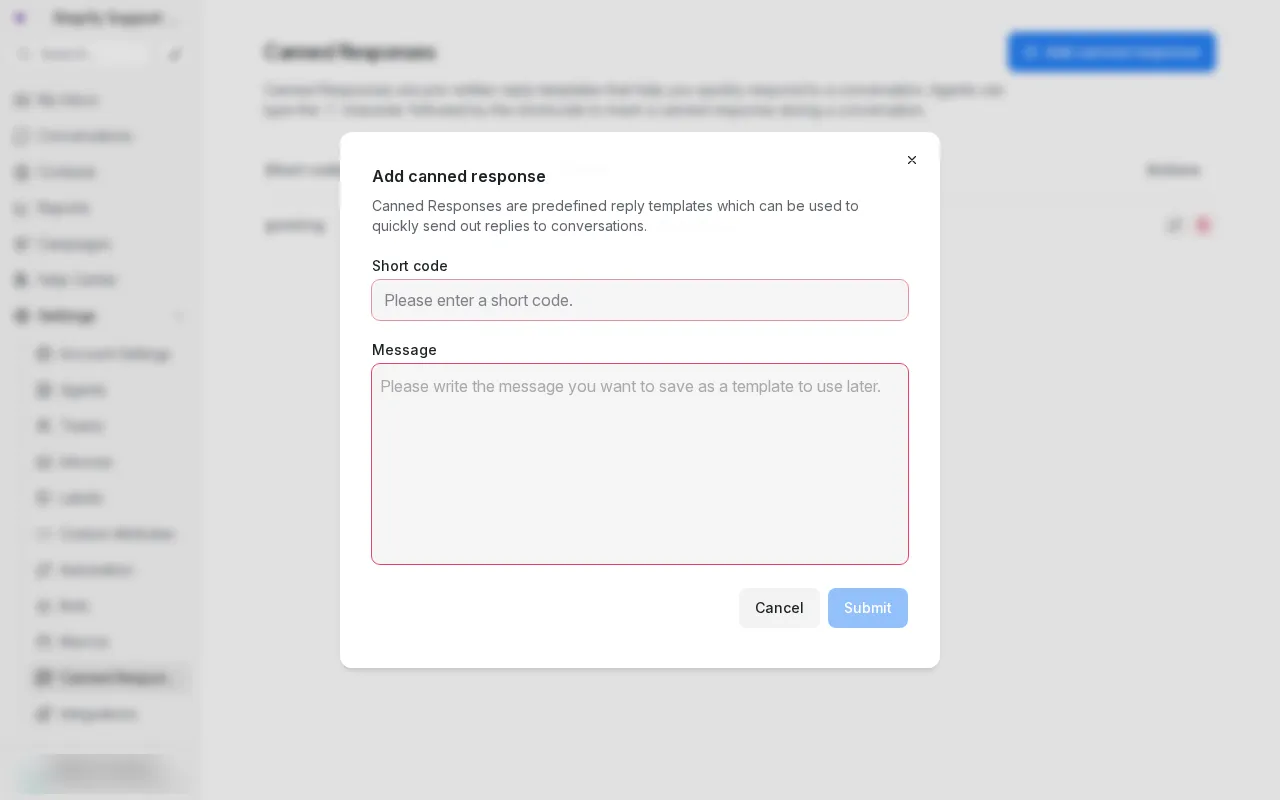
Click Add Canned Response to open the form
5
Enter a short code for your canned response
6
Enter your canned response message
7
Click Submit to create the canned response
✓
Complete
All 7 steps completed. How to create a canned response.
Steps
1
Log in to the Stepify Support dashboard
2
Open Settings in the left sidebar
3
Select Canned Responses from Settings
4
Click Add Canned Response to open the form
5
Enter a short code for your canned response
6
Enter your canned response message
7
Click Submit to create the canned response
×
‹
›
Step 1: Log in to the Stepify Support dashboard
1 of 7